Prices to approve
What happens to your prices when metal rates change.
When you save new metal rates, the price of every item made of that metal is worked out again in the background. What happens next depends on two settings in Settings → Pricing.
With Approve new prices automatically off (the default), nothing is put in use until you approve it. With it on, changes within your limit (15% unless you change it) are approved by themselves, and bigger jumps wait for you.
The limit is the Pricing approval flow of your plan. On a plan without it there is no limit: with automatic approval on, every new price is put in use by itself, however far it moves, and nothing is marked Big change.
The Prices to approve page
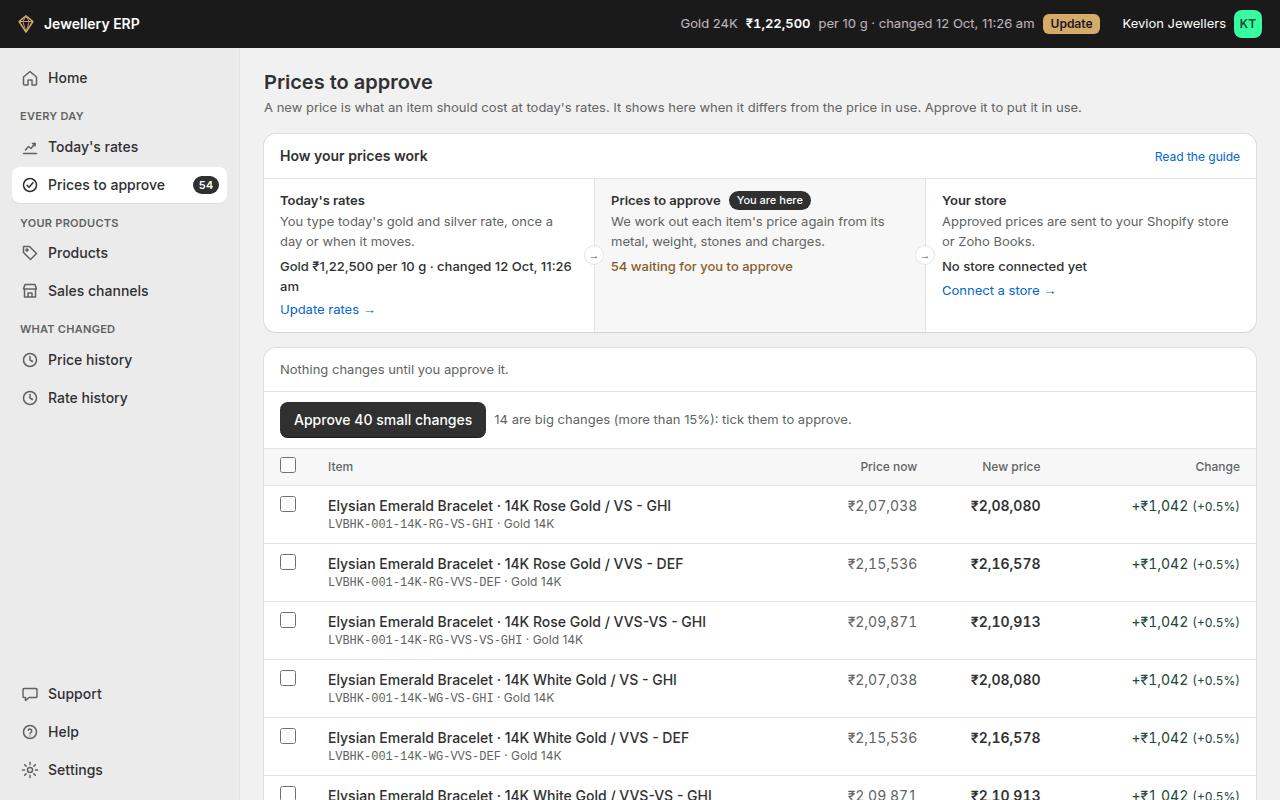
Open Prices to approve in the menu; the number next to it is how many are waiting. Every new price is in one list.
| What you see | What it means | What you do |
|---|---|---|
| A new price | It differs from the price in use, within your limit | Press Approve, or tick some and press Approve selected |
| Marked Big change | It moved by more than your limit | Check it, tick it and approve; the Approve button leaves it out otherwise |
| A note that items can't be priced | A metal rate or stone rate is missing; the reason is shown | Press Show them, open the item and fill in what is missing |
- If a connected store has Auto send off, the button reads Approve … and send to Shopify: the prices are approved and sent in one step.
- More, folded at the bottom, logs every pass: what started it, who, how many items were checked, how many prices were put in use and how many are left to approve.
- Work out all prices again, inside More, refreshes every new price without putting anything in use. It is only needed if a price looks out of date.
- Try other rates (inside More, on plans with simulation) shows what prices would be at a different rate or markup. Nothing is saved.
- Changing pricing settings (markup, GST, rounding, or turning automatic approval on) also works prices out again.
- Only the owner or an admin can approve; staff can view the page.
The first time prices are worked out, many items may be marked Big change, because the new price is far from the price typed in by hand. Check them once; after that, daily rate moves are small.