Sales channels (Shopify and Zoho Books)
Connect Shopify or Zoho Books and keep their prices in step.
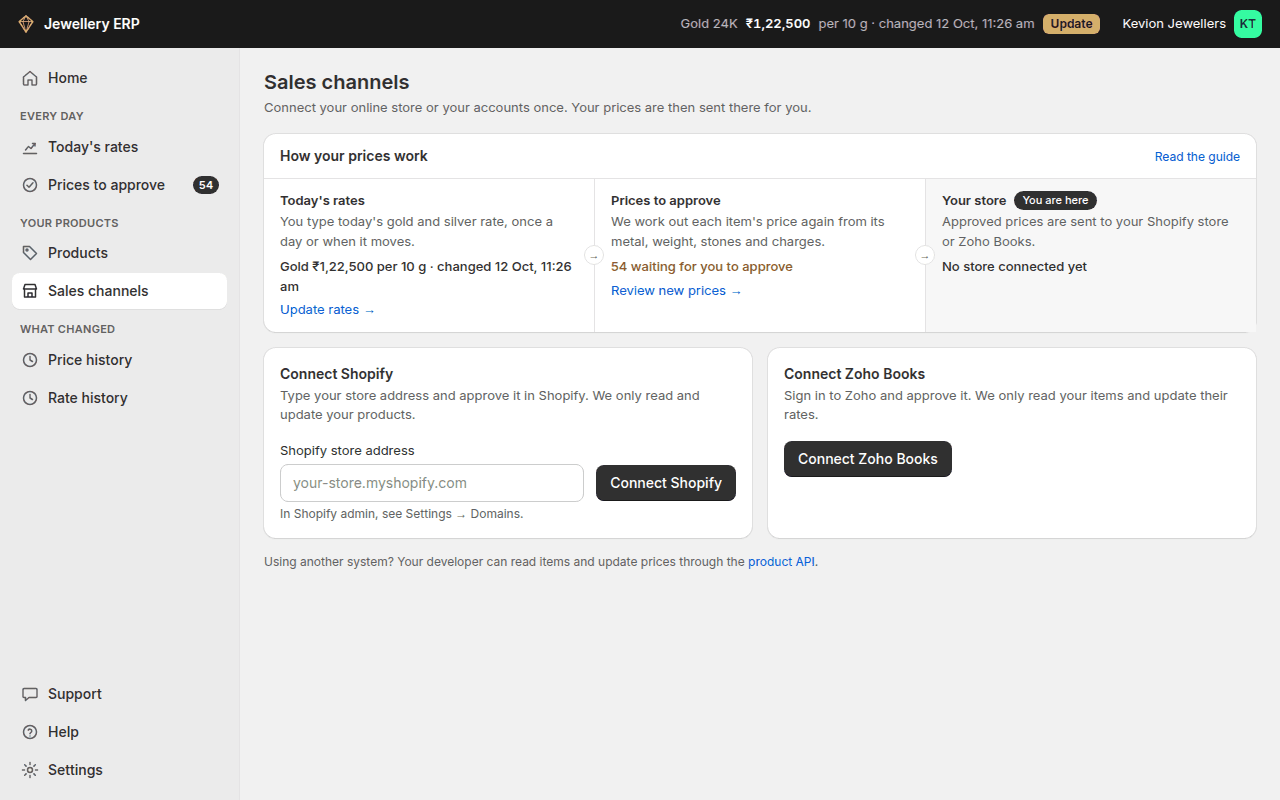
Connect under Sales channels. Shopify variants and Zoho Books items are matched to your items by SKU code.
- Each store page has four numbered steps that tick as they are done: Import your products, Match them to your items, Send prices, and Auto send.
- After you send prices once, price changes (by hand, through the API or approved under Prices to approve) go out by themselves while step four is on.
- The list below the steps shows what is matched, not matched or ignored, and prices that differ between the two sides. Recent activity logs everything imported and sent.
- Only the owner or an admin can connect or disconnect.
A store with its own prices
On plans with Multi-store pricing, each store page has a line Prices in this store. Leave it at 0 and the store gets your prices. Type a percent and choose above or below, and that store's prices follow yours with that difference: with 2% above, an item at ₹90,000 is sent as ₹91,800.
- The store's price is rounded the same way as your own prices (see Settings → Pricing).
- A store priced below yours never goes under an item's minimum price.
- The "was" price is moved by the same percent.
- Saving a new percent sends the store its new prices at once when Auto send is on. Otherwise they show as Price differs until you press Send prices.
- Your own prices, price history and other stores are not changed.
Shopify
- We send you an install link for your store. Open it and install the app in Shopify first.
- Under Sales channels, press Connect Shopify, type your store address and approve it in Shopify.
- Press Import. Each Shopify variant is matched to your item with the same SKU code.
- Press Send prices once. After that, new prices go to Shopify by themselves while Auto send is on.
- Add new ones too, on import, makes an item here for each Shopify variant you don't have yet. A variant without a SKU code gets one made from its name, and the new code is saved in Shopify.
- Add your products to Shopify creates the products Shopify doesn't have yet, as drafts with their options and prices. Add the photos in Shopify and publish them there.
- Your store has to sell in INR. A store that sells in another currency connects but prices are not sent to it.
- Apart from those two options, only prices are updated. Product names, photos, stock and orders in Shopify are not touched.
- Disconnecting keeps your matched products for a reconnect. To remove the app from Shopify too, uninstall it in Shopify admin under Settings → Apps.
More than one store
- How many stores you can connect depends on your plan. Press Connect another Shopify store for the next one; each store has its own install link.
- An item has one price, and it goes to every store it is matched in. A store showing a different price is set to yours the next time that item's price is sent.
- Use the same SKU code for the same piece in every store. Then it is one item here, matched in each store.
- Before using Add new ones too on a second store, give its variants their SKU codes. A piece with no code in both stores would be made twice.
- To hold one store back, turn its Auto send off. The others keep receiving prices, and you send to that one by hand when you are ready.
- To stop prices going to one store at all, press Switch off next to Send prices to this store. It still imports and matches, but nothing is sent, by hand or by itself, until you switch it on again. Prices that changed meanwhile go out then if Auto send is on.
- To put only some products in a store, press Choose which next to Add your products to Shopify, tick them and press Add. Add all adds every product the store does not have.
- A store can be connected to one account only. Contact us if it should move to another.
Zoho Books
- Press Connect Zoho Books, sign in to Zoho and press Accept.
- If your Zoho login has more than one organisation, pick the one whose items should get your prices.
- We import your active items and match each one to your item with the same SKU code. The rest are listed under Not matched; type the SKU code and press Match, or press Ignore.
- Press Send prices once. After that, new prices go to Zoho Books by themselves.
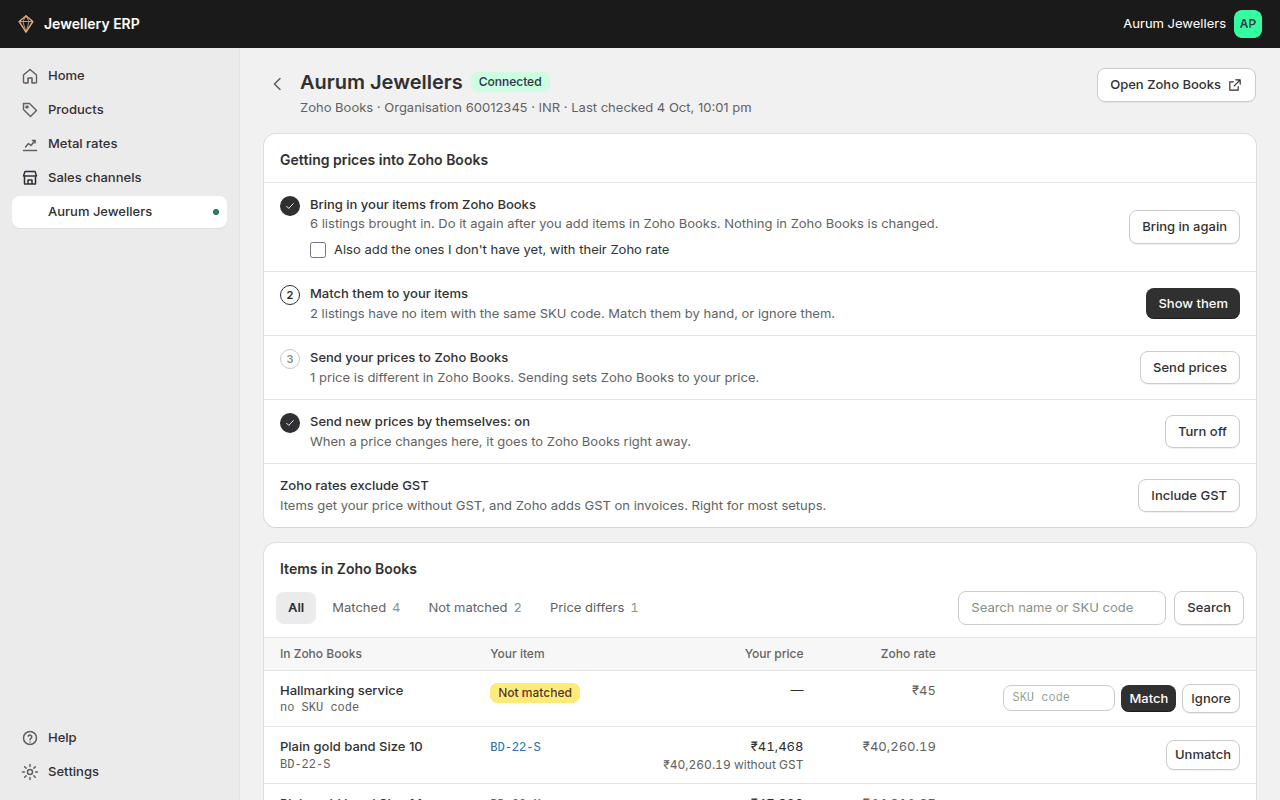
- GST: by default Zoho item rates get your price without GST (₹51,500 with 3% GST becomes a ₹50,000 rate), because Zoho adds GST on invoices. If your Zoho invoices are tax-inclusive, press Include GST; every rate is sent again.
- Only the rate is updated. Item names, stock, tax settings and invoices in Zoho Books are not touched.
- Rates edited inside Zoho Books show as Price differs after you import again; press Send prices to set them back.
- Disconnecting deletes our access and tells Zoho to revoke it. Your items in Zoho Books stay as they are.